
4 min read
Remove Checkered Background From PNG
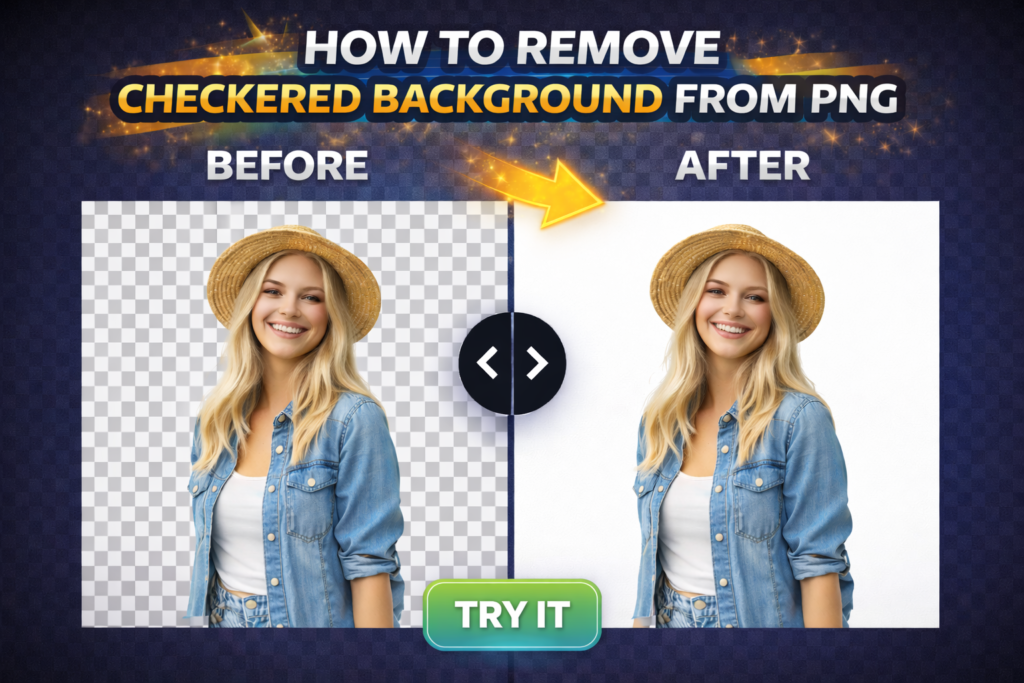
A checkered background on a PNG usually means one of two things:
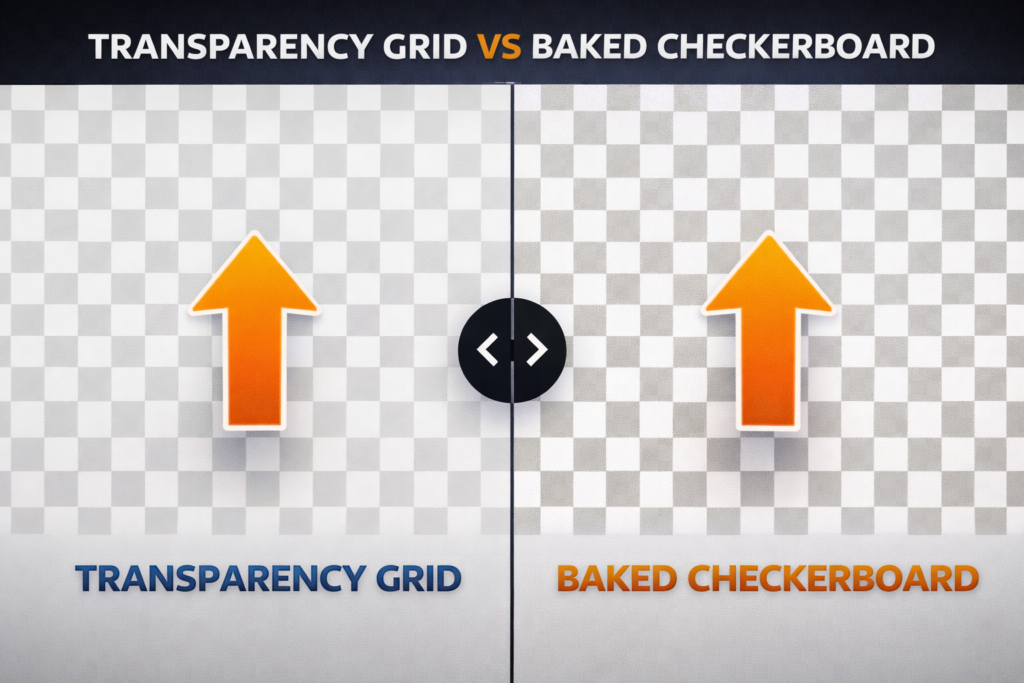
- The image is truly transparent and your viewer is showing a transparency grid.
- The checkered pattern is actually baked into the image as real pixels.
This guide shows how to tell the difference and what to do next.
Try BGSnip: https://bgsnip.com
Why PNG images show a checkered background
Many editors and viewers display transparency using a checkerboard pattern. That grid is a visual reference, not part of the saved PNG.
So the first job is figuring out whether you’re seeing a “preview grid” or actual checkered pixels.
How to tell if the checkerboard is real
Quick test (takes 10 seconds)
- Open the PNG in a different viewer (browser vs editor).
- Place it on top of a solid color background in any editor.
If the checkerboard disappears when placed on a colored background, it was just a transparency preview.
If the checkerboard stays visible as part of the image, it’s baked into the file.
How to remove checkered background from PNG
Case A: It’s only a transparency preview
Nothing needs to be removed. The file is already transparent.
What you should do instead:
- Use the PNG as-is, and place it over the background you want.
- If you want a solid background, add one in your editor or export to JPG (which flattens it).
Case B: The checkerboard is baked into the image
You need to remove the background like any other background.
How to (steps)
- Open BGSnip: https://bgsnip.com/remove-background-from-image/
- Upload the PNG that contains the baked checkerboard.
- Let BGSnip remove the background.
- Inspect edges to confirm the grid is gone.
- Download the result as a transparent PNG.
No signup required.
Common situations where the grid gets baked in
- Someone exported a transparent image incorrectly and flattened it on a checkerboard layer
- A screenshot was taken of an editor window (the grid becomes real pixels)
- The image was downloaded from a preview instead of the original file
Troubleshooting: common issues and fixes
The checkerboard is still visible after removal
That usually means the subject and grid have similar colors, so the edge separation is weak. A tighter crop around the subject can help.
The result looks “dirty” around edges
Grid pixels can create a noisy edge. Start with the highest resolution file you can find, not a screenshot.
My file wasn’t transparent at all
Not all PNGs contain transparency. A PNG can be fully opaque.
If you need transparency, background removal is the right step.
FAQ
How to remove checkered background from png?
First confirm whether it’s a transparency preview or real pixels. If it’s real pixels, remove it using BGSnip and export as PNG.
Is the checkered background part of the PNG?
Often no—it’s just the editor’s transparency indicator.
Why does my PNG look transparent in one app but not another?
Different apps display transparency differently. Some show a checkerboard; others show white or black.
Can I “turn off” the checkerboard?
In many editors, yes. But that only changes the preview, not the file.
What if the checkerboard is baked into the image?
Then it’s not transparency. It’s background pixels, and you need background removal.
Why do screenshots cause this problem?
A screenshot captures what you see (including the checkerboard preview), so it becomes real pixels inside the image.
Additional resources
https://bgsnip.com/remove-background-from-image/
https://bgsnip.com/transparent-background/
https://bgsnip.com/blog/
https://community.adobe.com/t5/photoshop/removing-checkerboard-from-transparency/m-p/8786448