
Remove Background From Signature
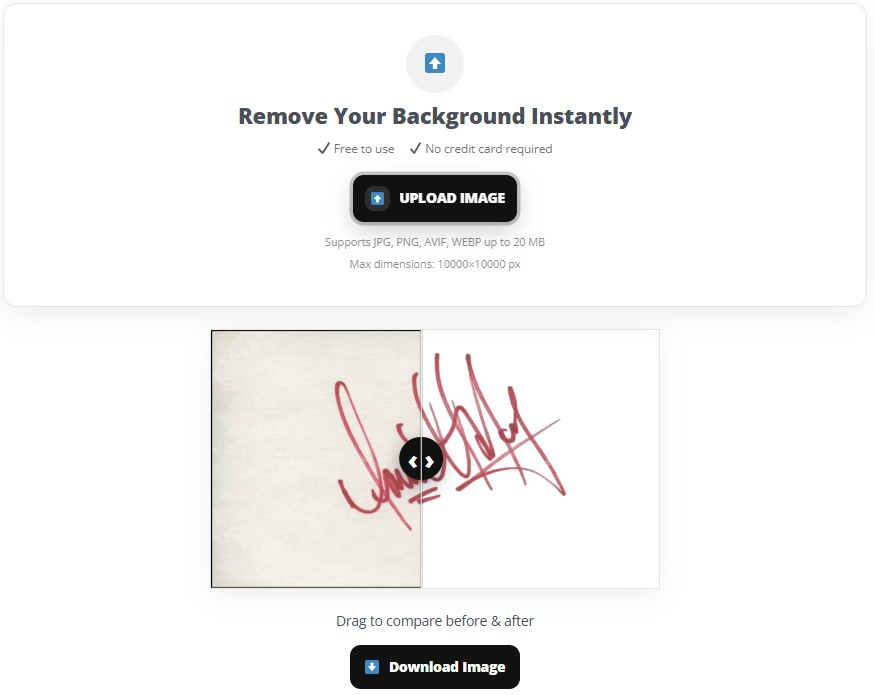
A signature image looks messy when it has a white box behind it. A clean transparent signature PNG drops into PDFs, invoices, proposals, and forms with zero “paper” background showing.
Try BGSnip: https://bgsnip.com
What you’ll get after background removal
A proper result means the signature ink stays solid, the edges look clean, and the background becomes transparent. That makes the signature reusable across multiple documents without redoing the work each time.
Transparent signatures also help when you need consistent branding on client paperwork, especially if you reuse the same templates.
Best signature image types to start with
Sharp input matters more than people think. A high-contrast signature (dark ink on light paper) produces the cleanest cut.
- Scanned signature: best option, especially if you can scan around 300 DPI
- Phone photo: works if lighting is even and the paper is flat
- Screenshot: not ideal unless it’s already crisp and high resolution
Cropping tight around the signature helps the tool focus on the ink instead of the whole page.
How to remove background from signature
- Open BGSnip: https://bgsnip.com
- Upload your signature image (JPG or PNG).
- Let BGSnip remove the background automatically.
- Check the preview for leftover gray tint or paper texture.
- Download as a transparent PNG.
- Insert it into your document editor or PDF workflow.
No signup required.
How to place a transparent signature into documents
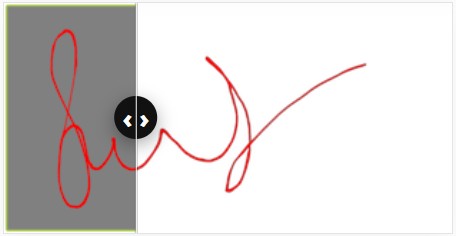
A transparent PNG can be placed into most editors like Word processors, PDF editors, and online form tools. The key is keeping the signature at a realistic size so it still looks like ink.
- For invoices: place near the bottom, align with printed name/title
- For contracts: place in the signature field area (not covering other text)
- For repeated use: save the PNG in a “Brand Assets” folder so you can grab it fast
Some signing tools also let you upload a signature image for reuse. Adobe’s signing flow includes an option to add a signature using an image file.
Quality tips that make a big difference
Fix faint ink before uploading. If the signature looks light gray, increase contrast using a basic photo editor. Darker ink helps the cut stay intact.
Avoid shadows and wrinkles. Shadows look like “background objects” and can cause rough edges. Retake the photo near a window with even lighting.
Use the largest version you have. Upscaling later makes edges look fuzzy, especially on PDFs.
Troubleshooting: common issues and fixes
The background is still visible (light gray paper tint)
Paper texture often survives if the image is low contrast or underexposed. Boost contrast and brightness, then upload again.
A scan or a brighter photo usually fixes it in one shot.
The signature ink is broken or missing parts
Faint pens, thin strokes, and motion blur cause gaps. Use a sharper image and tighten the crop around the signature.
If the ink is very thin, write it again on clean paper with a darker pen and reshoot.
Edges look jagged when inserted into a PDF
That’s usually a low-resolution image being stretched. Download the transparent PNG and place it at a smaller size.
If you need a larger signature, start with a higher-resolution scan.
The signature looks like it has a white box in certain apps
That often happens when the output isn’t transparent, or the app flattens it. Confirm the signature file is PNG and shows transparency before inserting.
FAQ
How do I remove background from signature fast?
Upload the signature image to BGSnip, let it remove the background, then download the transparent PNG.
Can I remove background from signature free?
BGSnip is free to start, and it’s built for quick signature background removal.
What’s the best format after I remove signature background?
PNG is the best choice because it keeps transparency for clean placement.
Why does my signature background turn gray instead of transparent?
Low contrast and paper texture can remain. Increase contrast and use better lighting or a scan.
Can I use a transparent signature PNG in PDFs?
Yes. Most PDF tools accept PNG images, and they place cleanly without a white box.
How do I make a signature look more like real ink on documents?
Keep the signature at a realistic size, avoid stretching, and start with a crisp, high-contrast scan.
What if my signature is on a full page with lots of white space?
Crop tightly around the signature before uploading so the tool focuses on the correct area.
Additional resources
https://bgsnip.com/remove-background-from-image/
https://bgsnip.com/transparent-background/
https://bgsnip.com/remove-logo-background/
https://bgsnip.com/blog/
https://www.adobe.com/devnet-docs/acrobatetk/tools/DigSigDC/appearances.html
Try BGSnip: https://bgsnip.com