
Remove Background From Image: 9 Powerful Ways for Clean Results
Remove background from image tasks are no longer just for designers. If you sell products, create content, or market online, clean background removal is essential.
A messy background distracts from the subject. A clean image builds trust, improves clicks, and looks professional across every platform.
This guide shows exactly how to remove background from image files the right way, using methods that work for beginners and professionals alike.
Table of Contents
- What remove background from image means
- Why background removal matters
- Best file types to use
- 9 ways to remove background from image
- Common mistakes
What Does Remove Background From Image Mean?
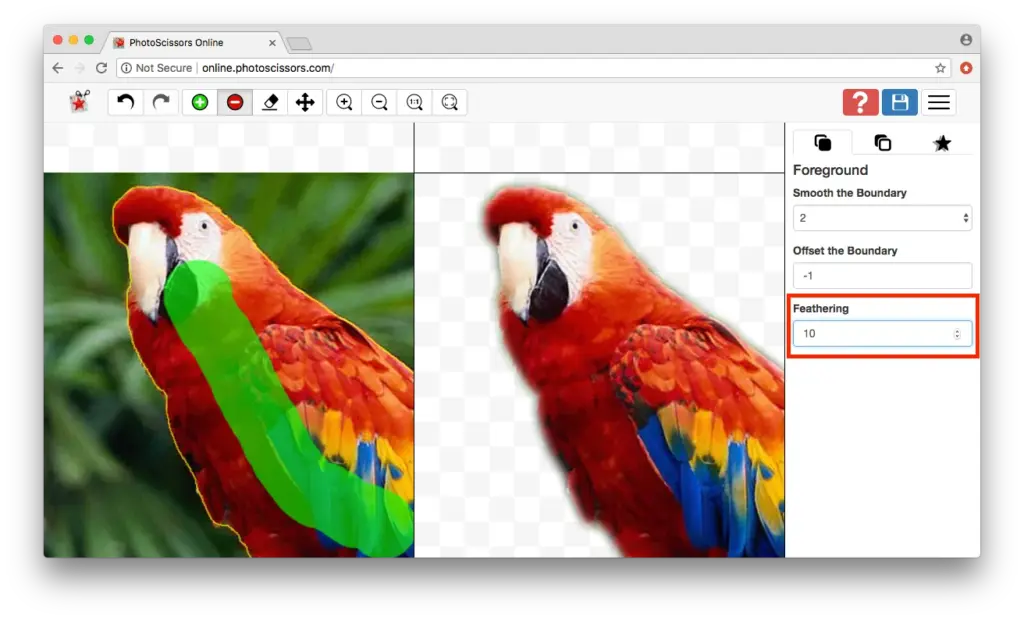
To remove background from image means isolating the main subject and deleting everything behind it. The final image usually has a transparent background or a clean solid color.
This technique is widely used for:
- Product photos
- Logos
- Thumbnails
- Marketing graphics


Why Removing Backgrounds Improves Image Quality
People judge images in seconds. A cluttered background reduces clarity and trust.
When you remove background from image files correctly, you:
- Improve focus on the subject
- Create visual consistency
- Increase click-through rates
- Make images usable everywhere
This is why ecommerce platforms and ad networks prioritize clean visuals.
Best File Types After Background Removal
The file format you choose matters after you remove background from image files.
- PNG: Best choice for transparency
- WEBP: Smaller size, modern format
- JPG: Only if adding a new background
PNG remains the safest option for clean edges and flexibility.
9 Proven Ways to Remove Background From Image Files
1. Automatic Background Removal Tools
Fast and beginner-friendly. Upload the image, let the tool detect the subject, and download the result.
2. Manual Selection Tools
More control, but requires skill and time.
3. Hybrid Workflow
Automatic removal followed by manual cleanup gives the best balance.
4. AI-Powered Editors
Modern tools handle complex edges like hair and shadows.
5. Batch Background Removal
Ideal for ecommerce stores with many product images.
6. Background Replacement
Remove first, then add a solid or lifestyle background.
7. Shadow Preservation
Keeps images realistic after background removal.
8. Edge Refinement
Critical for clean results on high-contrast backgrounds.
9. Final Export Optimization
Correct resolution and compression prevent quality loss.

Common Background Removal Mistakes to Avoid
- Jagged or blurry edges
- Using JPG instead of PNG
- Over-compressing images
- Low contrast between subject and background
Always review the image on light and dark backgrounds.
Recommended Tools
Professional designers often rely on tools from Adobe to remove background from image files while maintaining edge quality.
Final Thoughts
Learning how to remove background from image files is one of the highest-impact skills for online visuals.
Clean backgrounds improve trust, clarity, and conversions. Start simple, focus on edge quality, and always export in the right format.
Internal links:
Transparent PNG Explained
Best Product Photo Backgrounds